If you create content in 2026, you already know how fast trends move. One day it’s a smooth cinematic transition, next day it’s an aesthetic photo dump, and by the time you try to recreate it manually… the trend is already gone.
That’s why CapCut templates have become the shortcut every creator relies on. They save time, simplify editing, and help your videos look professional even if you’re a complete beginner. But as useful as they are, CapCut also comes with a fair share of headaches — templates not loading, the app lagging, exports getting stuck, and audio disappearing for no reason.
So let’s go step-by-step and make sure you understand:
✔ How to use CapCut templates
✔ How to pick the right one for your content
✔ How to customize templates smartly
✔ How to fix every major CapCut problem
✔ FAQs + pro tips
Why CapCut Templates Are So Useful in 2026
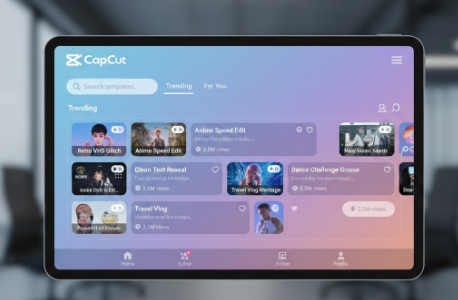
CapCut templates are like having a mini editor inside your phone. Instead of building transitions, syncing clips with beats, adding motion animations, or adjusting filters manually, a template already comes with:
- Pre-built timing
- Matching music
- Smooth transitions
- Color grading
- Text animation
- Perfect beat sync
- Visual effects
All you need to do is add your photos or videos, and everything falls into place.
This is the main reason why creators with no editing experience look like professionals today. A template handles the technical part while you focus on creativity.
Another reason they’re so popular in 2026 is the variety — aesthetic, dramatic, emotional, travel-style, slow-mo, glow effects, story edits, and even AI templates that automatically analyze your footage.
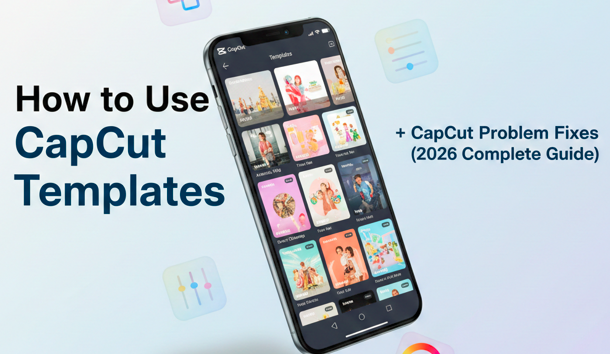
How to Use CapCut Templates (2026 Updated Beginner Guide)
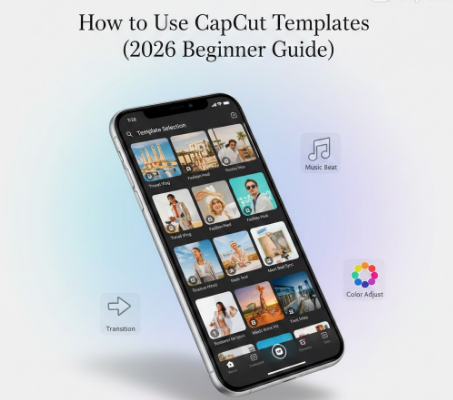
Using templates in CapCut is extremely simple, but using them correctly is what makes your content stand out. Here’s the full breakdown:
Step 1: Find and Open a Template
You can open templates in many ways:
- From the CapCut “Template” section
- Through Instagram/TikTok template links
- From creators sharing template codes
- Through CapCut’s desktop version
When you tap a template, CapCut shows an instant preview so you understand what style you’re about to create.
Step 2: Check What the Template Needs
Before you upload anything, CapCut tells you exactly how many clips or photos are required.
For example:
- “Add 3 photos”
- “Add 8 clips”
- “Add 1 video + 10 images”
These numbers matter because the entire timing and transitions depend on them. If you add the wrong amount, the template won’t look right.
Step 3: Upload Your Photos or Videos
This part is easier when you prepare your media beforehand. A few tips from experience:
- Use bright, sharp, well-lit photos
- Avoid dark or grainy clips
- Use portrait videos (vertical format)
- Shoot in 60FPS if possible — smoother transitions
- For travel videos, choose clips with movement
- For emotional edits, choose slower clips
Better input = better output.
Step 4: Watch the Preview Carefully
A lot of people rush this step. Don’t.
Watch how your photos move, how the colors blend, how the transitions feel. If the vibe doesn’t match your content, don’t force it — there are thousands of alternatives.
Templates are like outfits. Just because one looks good doesn’t mean it fits your content.
Step 5: Customize Your Template (The Secret to Standing Out)
Most beginners stop at uploading photos, but the secret to making your edit look different from millions of other template users is customizing.
You can change:
- Text
- Font
- Speed
- Filters
- Background
- Music
- Clip duration
- Effects
- Cropping
Even changing small things makes your video feel more personal and unique.
Step 6: Export Your Video in the Best Quality
For the best results in 2026:
- Export at 1080p or 4K
- Use 60 FPS
- Keep HDR on if your phone supports it
- Remove watermark for a cleaner look
High-quality uploads perform better on Instagram Reels, YouTube Shorts, and TikTok because platforms compress less when the video is already sharp.
How to Choose the Right CapCut Template for Your Video
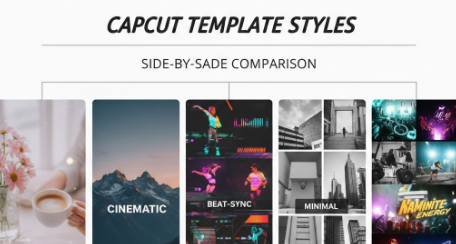
Choosing the right template isn’t random. Here’s how I personally decide:
1. Match the Emotion of Your Content
Every template has a “mood” — soft, emotional, aesthetic, energetic, dramatic.
If your content feels emotional, don’t use a fast template. If your content is travel style, avoid minimal slow-motion templates.
2. Match Your Niche
- Travel creators → cinematic templates
- Fashion creators → smooth glow templates
- Food creators → fast, punchy templates
- Couples → emotional aesthetic templates
- Business creators → clean, minimal, text-friendly templates
3. Match the Platform
Instagram and TikTok prefer short, punchy templates.
YouTube Shorts prefers slightly longer story-driven templates.
CapCut Problems & Fixes (2026 Most Complete List)
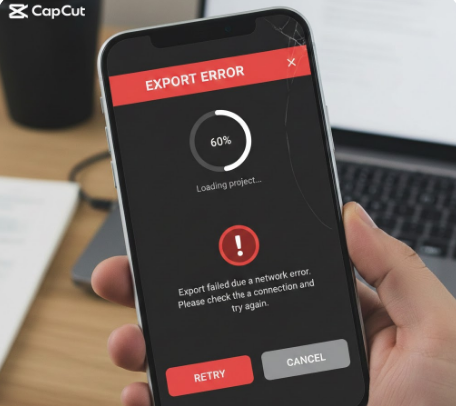
1. CapCut Templates Not Showing
Sometimes templates simply disappear. Why?
- Region restrictions
- App version outdated
- Cache corruption
- TikTok account not linked
Fixes:
✔ Use VPN (Singapore works best)
✔ Clear CapCut cache
✔ Update the app
✔ Open template links in browser
✔ Log in with TikTok
2. Template Link Not Opening
Most links get stuck because social media browsers block them.
Fixes:
✔ Open link in Chrome/Safari
✔ Enable “Open supported links” in phone settings
✔ Disable ad blockers
✔ Reinstall CapCut if needed
3. Export Stuck at 0% / 50% / 90%
This is the most frustrating problem.
Usually caused by:
- Low RAM
- Low storage
- Heavy effects
- HDR processing errors
Fixes:
✔ Free 2–3 GB storage
✔ Close background apps
✔ Export in 720p first, then 1080p
✔ Clear cache
✔ Turn off HDR preview
4. CapCut Crashing or Freezing
Older phones struggle with heavy templates.
Fixes:
✔ Restart device
✔ Turn off motion blur while editing
✔ Reduce preview quality
✔ Use CapCut Desktop for heavy edits
✔ Update your OS
5. Missing Audio in Templates
Reasons:
- Region-blocked sound
- Download error
- Permission issue
Fixes:
✔ Add the music manually
✔ Enable microphone + storage permissions
✔ Download the sound again
✔ Use TikTok-linked audio
6. Video Looks Blurry After Export
This happens when CapCut compresses your video.
Fixes:
✔ Turn off compression
✔ Export in 1080p/4K
✔ Increase clarity & sharpness manually
✔ Use original-quality clips
7. Black Screen Issue
This is usually a rendering issue.
Fixes:
✔ Turn off hardware acceleration
✔ Reduce heavy effects
✔ Restart the app
✔ Clear cache
8. Templates Lagging or Not Loading Properly
Causes:
- Too many effects
- Low RAM
- Too many apps open
Fixes:
✔ Reduce preview resolution
✔ Close background apps
✔ Avoid heavy templates on low-end devices
9. Templates Not Loading on iPhone
Fixes:
✔ Turn on Background App Refresh
✔ Enable all CapCut permissions
✔ Update iOS
✔ Open templates through Safari instead of Instagram
10. Templates Too Dark or Bright
Fixes:
✔ Remove template filter
✔ Adjust brightness manually
✔ Turn off HDR if colors look washed out
Advanced CapCut Tips for 2026 🧠

Here are some pro-level tricks:
1. Use LUTs (Professional Color Grading)
CapCut now supports LUT color files — instantly gives a cinematic look.
2. Add Custom Beat Markers
Tap the music timeline to manually mark beats for perfect sync.
3. Use CapCut Desktop for Heavy Work
More stability, better processing, no lag.
4. Mix Template + Manual Editing
This gives you a unique identity and breaks the “template look.”
Frequently Asked Questions
1. Are CapCut templates free?
Yes, almost all templates are free. Some premium templates exist but optional.
2. Can I monetize videos made using templates?
Yes, as long as the music is copyright-safe for the platform.
3. Why doesn’t my template match the preview?
Probably because your clips don’t match the color or orientation. Try different media.
4. Can I upload CapCut edited videos to YouTube?
Absolutely — YouTube Shorts performs very well with CapCut-style edits.
5. Do templates lower video quality?
No, quality depends on your export settings and original footage
Hidden CapCut Tips Most People Don’t Know (2026)💡
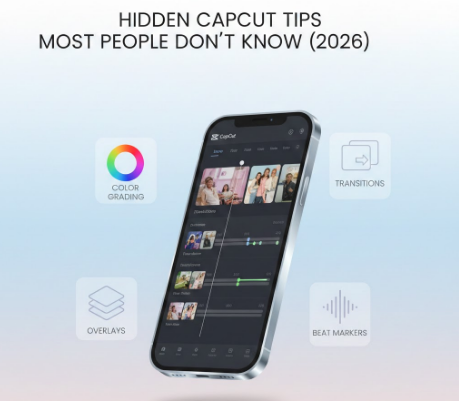
Here are some real life-tested tricks:
1. Turn Off Auto Filters
Auto filters sometimes ruin natural colors. Manually adjust brightness and contrast for cleaner results.
2. Shoot at 60FPS
Templates with fast transitions look smoother when your clips are shot in 60FPS.
3. Increase Sharpness Slightly
A small boost (+10 to +15) makes your video look crisp without oversharpening.
4. Duplicate Your Project Before Editing
If CapCut crashes, you won’t lose everything.
5. Don’t Overuse Heavy Effects
Too many glow or motion blur effects can cause lagging and export issues.
My Final Thoughts
Using CapCut templates in 2026 is like having a creative assistant in your pocket. They take the stress out of video editing, letting you focus on what really matters — telling your story and expressing your ideas. But the magic isn’t just in clicking a template; it’s in knowing how to pick the right one, customize it to match your style, and handle the little glitches that can happen along the way.
When you take the time to explore CapCut’s features, experiment with customization, and apply the fixes for common problems, you’ll notice a huge difference. Your videos will look sharper, smoother, and more professional, even if you’re just starting out. Templates become more than shortcuts — they become a foundation for building your unique editing style.
The real power comes when creativity meets consistency. With the tips, tricks, and problem-solving steps shared in this guide, you can save hours of editing time, avoid frustrating setbacks, and still produce content that feels fresh, engaging, and high-quality.
At the end of the day, CapCut templates aren’t just tools — they’re stepping stones. They help beginners feel confident and give seasoned creators a faster, smarter way to bring their ideas to life. Keep experimenting, trust your instincts, and let every edit reflect your personal touch. That’s how you take your videos from ordinary to unforgettable.