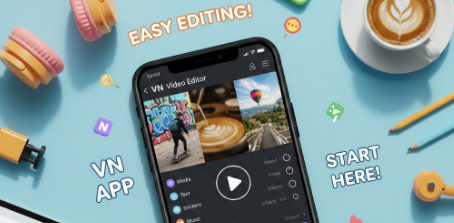
Video editing can seem intimidating if you’re just starting, but mobile apps like VN App make it accessible, fun, and professional. Whether you want to create social media videos, vlogs, or personal projects, VN App provides beginner-friendly tools without overwhelming you with complex features.
In this guide, we’ll take you through everything a beginner needs to know — from starting your first project to exporting a polished video — along with tips to make your editing process faster and more creative.
Why VN App is Perfect for Beginners

VN App is ideal for newcomers because it combines simplicity with powerful editing tools:
- Intuitive Interface: Easy to navigate, even if you’ve never edited a video.
- No Watermarks: Export videos without any branding.
- Cross-Platform: Available on Android, iOS, and desktop.
- Powerful Tools: Offers multi-layer editing, filters, transitions, text animations, and audio control.
- Free Features: Most of the essential tools are free to use, making it beginner-friendly.
This combination makes VN App the perfect choice for anyone who wants professional-looking videos without a steep learning curve.
Step-by-Step Guide to Using VN App
Here’s a detailed walkthrough to help beginners start editing confidently.
Step 1: Install VN App
- Open your App Store (iOS) or Google Play Store (Android). Download Link:
- Search for VN Video Editor and install the app.
- Open the app and sign in to sync projects across devices (optional).
Step 2: Start a New Project
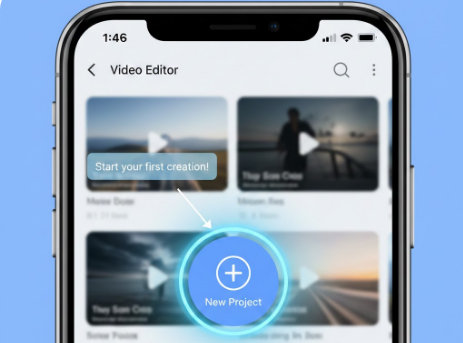
- Tap “New Project”.
- Select your video clips and/or images. VN allows combining both in a single project.
- Tap Next to enter the editing timeline.
Step 3: Arrange and Trim Clips
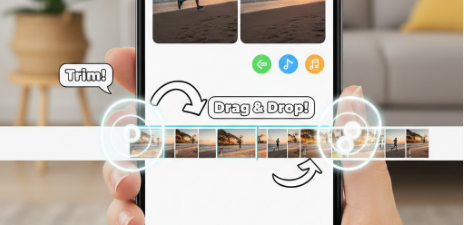
- Drag clips to set the sequence.
- Tap a clip to trim, split, or delete unnecessary parts.
- Adjust clip lengths precisely by dragging the edges on the timeline.
Tip: Short clips tend to perform better on social media, keeping viewers engaged.
Step 4: Add Transitions
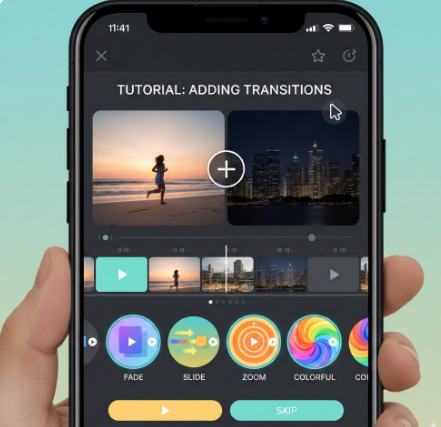
- Tap the transition icon between clips.
- Choose from fade, slide, zoom, or other transitions.
- Use transitions sparingly to avoid a cluttered look.
Tip: One or two smooth transitions per video are usually enough for a professional appearance.
Step 5: Add Text, Titles, and Captions
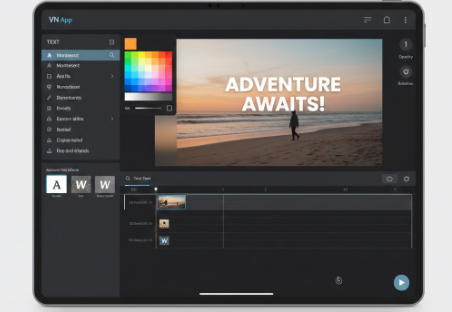
- Tap “Text” to insert titles or subtitles.
- Customize font, size, color, and animation style.
- Ensure the text does not cover important parts of your video.
Tip: Subtitles are especially useful for viewers who watch without sound.
Step 6: Apply Filters and Effects
- Tap “Filter” to change the visual style of your clips.
- Adjust brightness, contrast, saturation, and exposure to enhance visuals.
- Use VN’s preset effects for a consistent, polished look.
Tip: Stick to a simple color style to maintain a professional feel across your video.
Step 7: Add Music and Sound
- Tap “Audio” to add music or sound effects.
- Adjust the volume, add fade-ins and fade-outs, and align music with clip timing.
- Record voiceovers directly in VN for narration or commentary.
Tip: Syncing music with the video’s beats can make your content more engaging and lively.
Step 8: Preview and Fine-Tune
- Watch your video several times to check for smooth transitions, readable text, and proper audio.
- Make minor adjustments to timing, placement, and audio levels.
Step 9: Export Your Video
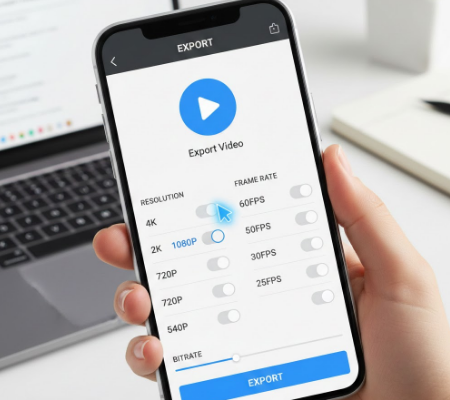
- Tap “Export” when you’re satisfied.
- Choose the resolution (1080p at 30fps is standard).
- VN exports quickly and without watermarks.
Tip: Keep a high-resolution copy saved for future use or reposting.
Expert Tips for Beginners
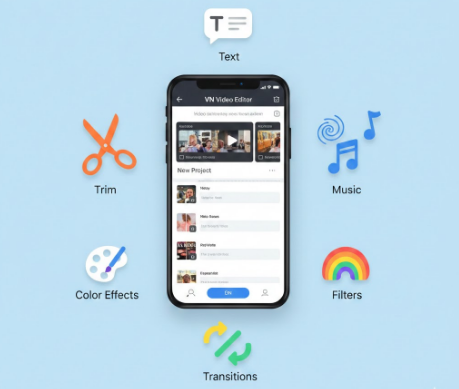
- Start Simple: Focus on trimming, transitions, and basic text before exploring advanced effects.
- Use Templates: VN offers pre-made templates to help beginners create professional videos quickly.
- Keep Clips Short: Shorter clips maintain attention and are easier to edit.
- Experiment with Music and Voiceovers: Audio can greatly enhance the storytelling aspect.
- Practice Regularly: Editing is a skill — the more you practice, the faster you improve.
Frequently Asked Questions (FAQ)
Q1: Is VN App free for beginners?
Yes, most tools are free, including exporting videos without watermarks. Optional paid features exist but aren’t necessary to create professional videos.
Q2: Can I edit both photos and videos together?
Absolutely! VN allows combining images and videos in one timeline.
Q3: Is VN App easy for someone with no prior experience?
Yes. Its intuitive design, tutorials, and templates make it ideal for beginners.
Q4: Can I add my own music or record voiceovers?
Yes. You can import music and record voiceovers directly in the app.
Q5: What is the best export resolution for social media?
1080p at 30fps works best for most platforms, offering a good balance between quality and file size.
Q6: Is VN available on both Android and iOS?
Yes, and projects can sync across devices if you sign in with an account.
Q7: How can I improve my editing skills faster?
Practice consistently, explore templates, watch tutorial videos, and recreate trending content to learn pacing, transitions, and effects.
Final Thoughts
VN App is a powerful yet beginner-friendly video editor. By following this step-by-step guide and practicing consistently, even a newcomer can create high-quality, shareable videos. Remember, patience and experimentation are key — don’t be afraid to try new effects, transitions, or music styles. With VN App, you can turn your ideas into professional-looking videos in no time.