Have you ever spent hours editing a video—perfect transitions, crisp colors, clean audio—only to upload it to YouTube or Instagram and notice it suddenly looks blurry or washed out? It’s a heartbreaking moment every creator dreads. The truth is, your video’s export settings matter just as much as your editing skills. Choosing the right resolution, format, and bitrate can make or break your content. Today, we’re diving deep into the 1080p vs 4K debate and how to export videos for YouTube and Instagram like a pro.
Understanding the Difference Between 1080p and 4K
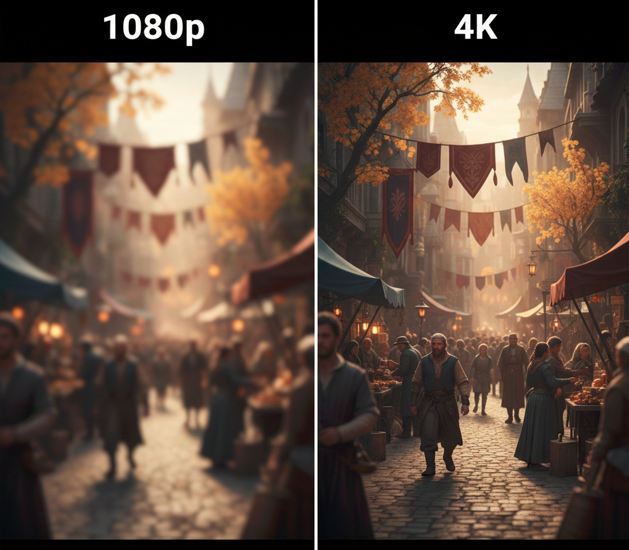
Let’s start with the basics. 1080p, also known as Full HD, has a resolution of 1920×1080 pixels, while 4K, also called Ultra HD, boasts 3840×2160 pixels—essentially four times more detail than 1080p. On paper, 4K sounds superior, and in many cases, it is. The sharpness, color depth, and overall clarity can make a video appear cinematic and professional. However, resolution alone does not guarantee a stunning final upload. Platforms like YouTube and Instagram apply compression algorithms that reduce the file size and, often, the visible quality of your content. A poorly exported 4K video can look worse than a properly exported 1080p video, especially when viewed on mobile devices. Therefore, the real question isn’t just “1080p or 4K,” but “which settings will give the best visible quality after platform compression?”
When 1080p is Enough

1080p may seem outdated in the age of 4K cameras and ultra-high-definition displays, but for many creators, it remains the practical choice. If your original footage was shot in 1080p, upscaling to 4K will not magically improve the quality—it will only increase file size and export time. For creators focusing on YouTube vlogs, tutorials, commentary videos, or mobile-shot content, 1080p provides a balance between quality and convenience. Additionally, if your internet connection is not very fast or you need to upload multiple videos regularly, smaller 1080p files make your workflow much more efficient.
The recommended export settings for 1080p are straightforward but crucial: resolution at 1920×1080, frame rate at 30 or 60 FPS depending on your content, format in MP4 using the H.264 codec, and a bitrate of 12–18 Mbps for YouTube or 8–12 Mbps for Instagram. Following these settings ensures your video remains clear and smooth while keeping file sizes manageable. Remember, 1080p is especially effective for mobile viewers, who constitute the majority of social media users today. With careful attention to bitrate and compression, a well-exported 1080p video can rival a 4K video in perceived quality, particularly for Instagram posts where screen size and platform compression limit the visibility of every tiny pixel.
Why You Should Consider 4K

4K, with its 3840×2160 resolution, brings undeniable benefits for content creators who want to showcase every detail. For cinematic videos, travel vlogs, high-motion content, or projects intended for larger displays, 4K ensures your visuals remain crisp and professional. Even if most viewers watch on 1080p screens, uploading in 4K can actually improve the final quality because YouTube and Instagram compress 4K videos less aggressively than 1080p ones. This means that edges, transitions, and text elements retain more clarity, giving your audience a better viewing experience.
4K is also ideal if you want to future-proof your content. As screen resolutions increase and platforms continue to prioritize higher-quality uploads, 4K footage ensures your videos will still look sharp years down the line. The trade-off is larger file sizes, longer export times, and the need for more storage space. For creators working with mobile editing apps like CapCut or VN, it may also require a more powerful device to export efficiently. However, the payoff is usually worth it for high-impact visuals, especially for Instagram Reels, YouTube Shorts, and content where visual detail makes a difference.
Recommended 4K export settings: resolution at 3840×2160, frame rate at 30 or 60 FPS, MP4 format with H.264 or H.265 codec, and bitrate ranging from 35–45 Mbps for YouTube and 20–30 Mbps for Instagram. These settings strike the balance between high-quality visuals and manageable file sizes.
The Vertical vs Horizontal Dilemma
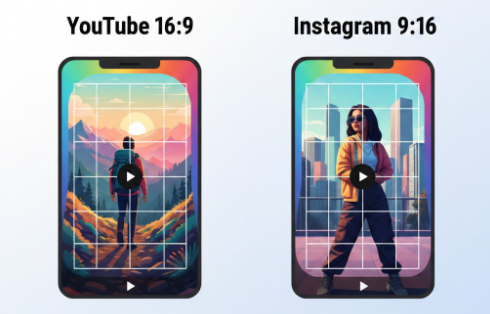
One of the most overlooked aspects of exporting for social media is orientation. YouTube thrives on horizontal (16:9) videos, while Instagram Reels and Stories dominate vertical (9:16) content. Uploading a horizontal video to Instagram without adjusting orientation will result in black bars, shrunken visuals, and potential pixelation. Similarly, vertical videos posted on YouTube may appear letterboxed or poorly scaled on desktop.
For creators aiming to post the same content across platforms, it’s essential to export multiple versions: horizontal for YouTube, vertical for Instagram. Additionally, vertical 4K videos often outperform 1080p in terms of Instagram clarity, especially after compression. This is because Instagram tends to compress smaller files more aggressively, reducing sharpness and color fidelity. Slightly increasing sharpness during export can help your content withstand platform compression without looking over-processed.
Understanding Platform Compression
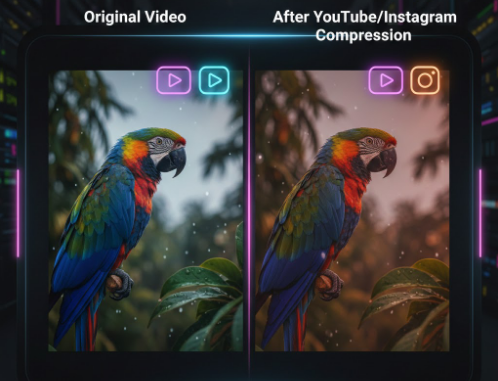
Both YouTube and Instagram apply their own compression algorithms to every upload. YouTube compresses videos but retains more detail for 4K content, while Instagram compresses videos heavily to save bandwidth, especially for mobile viewers. This compression can affect clarity, color vibrancy, and the overall professional appearance of your video. Many creators find that small adjustments—like exporting slightly sharper footage, increasing bitrate, or choosing the right codec—can make a huge difference.
The key is to anticipate compression. Export videos slightly sharper than they appear in your editor, use high bitrates, and ensure that vertical videos fit Instagram’s screen perfectly. Even minor tweaks before upload can prevent your hard work from looking muddy on mobile devices.
Best Formats: MP4 vs MOV
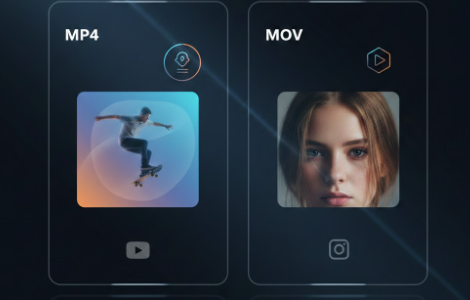
Choosing the correct file format is just as important as resolution. MP4 (H.264) remains the most widely compatible format across platforms and devices. It offers a balance of file size and quality, making it ideal for YouTube. MOV (H.265 / HEVC) is newer, allowing higher compression without losing quality. If your app or platform supports it, H.265 is especially useful for Instagram uploads, as it preserves more detail in smaller files.
Practical Settings for Mobile Editors (CapCut & VN)
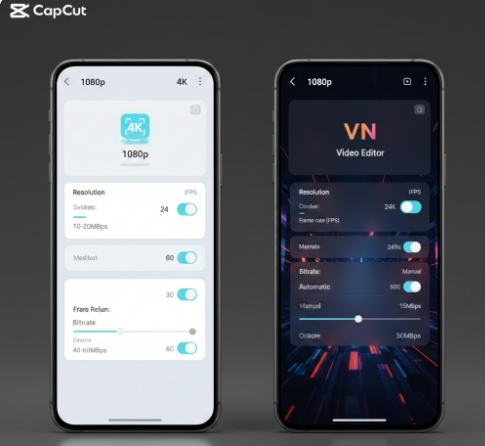
Many creators today rely on mobile editing apps, which can simplify the export process. Here are tested recommendations:
CapCut 1080p: resolution 1080p, FPS 60, bitrate 20 Mbps, H.264 codec.
CapCut 4K: resolution 4K, FPS 60, bitrate 35 Mbps, H.265 codec.
VN 1080p: resolution 1080p, high bitrate, FPS 60.
VN 4K: resolution 4K, very high bitrate, FPS 60, H.265 codec.
Using these settings, even mobile editors can achieve professional-looking results that survive platform compression.
Testing Before Uploading
Professional creators always test. Before publishing, export your video in both 1080p and 4K and upload privately to the platform. Compare how the video looks on desktop and mobile. Check clarity, colors, motion, and sharpness. Sometimes, a 1080p export can outperform a 4K export due to compression artifacts or scaling issues. Testing helps you choose the version that will best represent your work to your audience.
Final Verdict: 1080p or 4K?
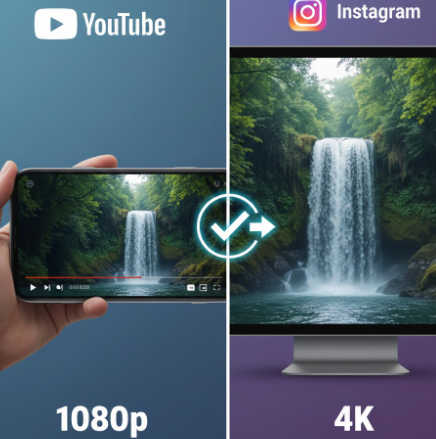
- YouTube: 4K is preferred for professional content. It ensures minimal compression and maximum clarity. 1080p works for casual uploads or when efficiency is needed.
- Instagram: Vertical 4K is ideal, especially for Reels. It outperforms 1080p after compression. 1080p may suffice for less detail-heavy content or faster uploads.
Ultimately, match your export settings to your footage quality, device capabilities, platform requirements, and audience habits. Remember, quality is perception—even a 1080p video can look stunning if exported thoughtfully.
Quick Export Checklist
✔ Correct resolution (1080p or 4K)
✔ Correct orientation (16:9 horizontal for YouTube, 9:16 vertical for Instagram)
✔ Frame rate: 30–60 FPS depending on motion
✔ High bitrate for clarity
✔ Sharpness adjusted for Instagram
✔ Appropriate codec (H.264 or H.265)
✔ Upload on stable internet for best results